Remote Work Data Setup: Your 2026 Productivity Guide

TL;DR:
- A remote work data setup combines hardware, connectivity, software, and security tools to enable productive work outside an office. Proper setup improves onboarding speed and reduces security incidents, making it essential for remote employees and digital nomads. Building a structured setup early with reliable internet, ergonomic hardware, a streamlined software stack, and strong security measures enhances productivity and safety.
A remote work data setup is the complete system of hardware, connectivity, software, and security tools that lets you work productively from anywhere outside a traditional office. Done right, it delivers 45% faster onboarding and 50% fewer security incidents compared to ad-hoc arrangements. That gap matters whether you are a digital nomad hopping between cities or a remote employee working from a fixed home office. The core components are internet connection quality, ergonomic hardware, a tight software stack, and disciplined data security. Get all four right, and your setup becomes an asset. Miss one, and it becomes a liability that costs you time, money, or worse, a data breach.
What hardware and connectivity does a remote work data setup require?
Connectivity is the foundation. Professional remote workers need at least 200 Mbps and a wired Ethernet connection over Wi-Fi wherever possible. Ethernet eliminates the packet loss and latency spikes that Wi-Fi introduces, especially in apartment buildings with congested wireless channels. Your router also matters: look for one with Quality of Service (QoS) settings, which let you prioritize work traffic over streaming or gaming on the same network.
Upload speed is frequently underestimated but critical for data-heavy tasks. Video conferencing, large file transfers, and cloud syncing all consume upload bandwidth. Many residential internet packages are asymmetric, meaning download speeds are high but upload speeds are low. Check your upload speed with a tool like Speedtest by Ookla before committing to a plan.
Hardware essentials by priority
The two highest-impact investments are a quality monitor and an ergonomic chair. Proper monitor height and a separate keyboard and mouse improve comfort and reduce fatigue over long sessions. Your monitor should sit at eye level so your neck stays neutral. A separate mechanical keyboard and a programmable mouse reduce wrist strain compared to a laptop’s built-in input devices.

Home office setup costs fall into three tiers:
| Tier | Cost Range | What You Get |
|---|---|---|
| Functional | $200–$300 | Basic desk, entry-level chair, webcam |
| Comfortable | $500–$800 | Ergonomic chair, external monitor, decent headset |
| Professional | $1,000–$2,500+ | Sit-stand desk, high-res monitor, full peripheral set |
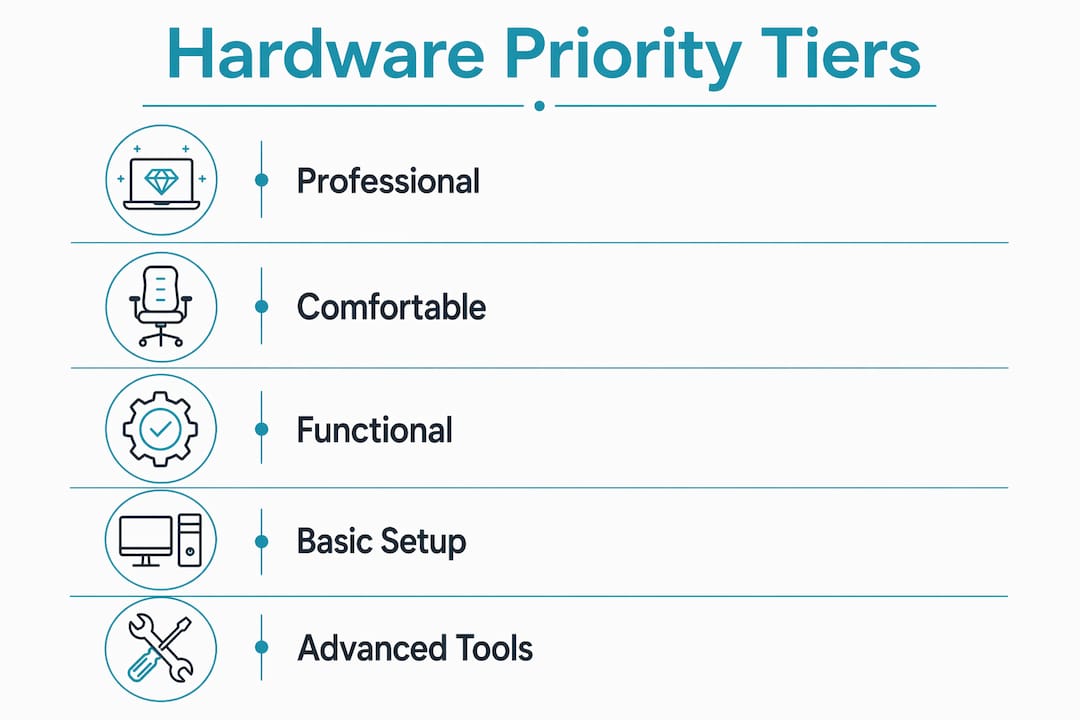
Most remote workers find the comfortable tier delivers the best return. The professional tier makes sense if you spend eight or more hours daily at your desk or handle video-heavy work.
Pro Tip: Order all furniture and IT equipment at least 2–3 weeks before your start date. Shipping delays and out-of-stock items are the most common cause of first-week chaos for new remote workers.
Which software tools make remote data work more efficient?
The right software stack for remote data work covers five categories: messaging, video conferencing, project management, documentation, and security. A stack of 5–7 core tools is the proven ceiling. Beyond that, you get fragmentation: notifications scatter across platforms, files live in multiple places, and onboarding new teammates takes twice as long.
Here is what a well-structured stack looks like in practice:
- Messaging: A single team chat platform (such as Slack or Microsoft Teams) for real-time communication
- Video conferencing: One primary platform (such as Zoom or Google Meet) for synchronous calls
- Project management: A task tracker (such as Asana or Jira) for assignments and deadlines
- Documentation: A shared knowledge base (such as Notion or Confluence) for specs, runbooks, and decisions
- Security: A password manager plus a VPN for every session on untrusted networks
- Async video: A tool like Loom for recorded walkthroughs that replace unnecessary meetings
Async video tools deserve special attention. Loom lets you record a five-minute screen walkthrough instead of scheduling a 30-minute meeting. For remote data teams, treating every pipeline change as a documented pull request with a recorded explanation is the highest-leverage async practice available.
Consolidating to a small, reliable tool set with clearly defined roles for each platform reduces context-switching and keeps your security surface area small. Every additional app is another login, another potential breach point, and another distraction.
Pro Tip: Set up all accounts and access permissions before your first day. Structured account provisioning that happens before the start date cuts onboarding delays and reduces security exposure from day one.
How do you implement strong security in your remote setup?
Security in a remote environment starts with authentication. Hardware security keys like YubiKey provide stronger two-factor authentication than SMS codes or authenticator apps. They are resistant to phishing because the key physically verifies the site you are logging into. Use hardware keys for your cloud provider accounts, password manager, and any admin-level access.
Full-disk encryption and automated cloud backups are non-negotiable baseline controls. Full-disk encryption and cloud backup must be configured before a device ships to a remote worker. If a laptop is lost or stolen, encryption prevents data exposure. If a drive fails, cloud backup prevents data loss.
Separating personal and work data at the operating system level is a practice most remote workers skip until something goes wrong. Use separate browser profiles or separate user accounts on your machine for work and personal activity. Never store sensitive work files locally without encryption. Keep all production data in cloud storage with access controls, not on your local drive.
Common security mistakes to avoid:
- Reusing passwords across work and personal accounts
- Using SMS as your only second factor
- Sharing login credentials with teammates “temporarily”
- Skipping VPN on coffee shop or hotel Wi-Fi
- Leaving auto-lock disabled on your work machine
Pro Tip: Plan your security onboarding before you start work, not after. Set up your VPN, password manager, and hardware key in the same week you order your hardware. Waiting until day one means you are already behind.
What are the best strategies for organizing your home office?
Physical workspace organization directly affects focus and output. The most common mistake remote workers make is treating their home office as temporary. A permanent, dedicated workspace signals to your brain that work is happening there. That mental separation matters for sustained concentration.
Start with lighting. Natural light from the side (not behind or in front of your monitor) reduces eye strain. Add a desk lamp with adjustable color temperature for evening sessions. Cable management is not cosmetic: loose cables create hazards, collect dust, and make hardware swaps slower. Use cable clips, velcro ties, or a cable management tray under your desk.
A practical setup timeline
Starting your physical and technical setup 2–3 weeks early prevents the equipment delays and connectivity issues that derail first weeks. Use this sequence:
- Week 1 before start: Order all furniture and hardware. Confirm internet plan and schedule installation if needed.
- Week 2 before start: Set up desk, chair, monitor, and peripherals. Run speed tests and configure router QoS settings.
- Week 3 before start (or days before): Install software stack, configure security tools, and test video conferencing setup end to end.
- Day before start: Run a full dry run. Join a test video call, open all work apps, and verify VPN connectivity.
Troubleshooting connectivity issues is faster when you have a baseline. Document your normal ping, download speed, and upload speed after setup. When something feels slow, you have a reference point to compare against.
| Setup Component | Lead Time Needed | Common Delay Risk |
|---|---|---|
| Furniture | 1–2 weeks | Shipping backorders |
| IT hardware | 1–2 weeks | Stock availability |
| Internet installation | 1–2 weeks | ISP scheduling |
| Software and accounts | 1–2 days | IT provisioning queues |
| Security configuration | 1 day | Key delivery time |
Key Takeaways
A structured remote work data setup built on wired connectivity, a tight software stack, and pre-configured security controls delivers measurably better productivity and fewer incidents than an ad-hoc approach.
| Point | Details |
|---|---|
| Connectivity first | Target 200 Mbps with wired Ethernet and check upload speed before committing to a plan. |
| Invest in ergonomics | A quality monitor and ergonomic chair deliver the highest productivity return per dollar spent. |
| Limit your software stack | Keep tools to 5–7 core applications with clearly defined roles to reduce fragmentation. |
| Harden security early | Configure full-disk encryption, a password manager, and hardware 2FA before your first day. |
| Start setup 2–3 weeks early | Early procurement prevents the equipment delays that disrupt the first weeks of remote work. |
What I have learned from building remote setups across three continents
The advice that gets skipped most often is also the advice that matters most: upload speed and security setup. Every remote worker I have spoken with obsesses over download speed and then wonders why their video calls drop. Upload is the bottleneck. I learned this the hard way during a client presentation from a co-working space in Lisbon, where a 100 Mbps download connection had a 5 Mbps upload cap. The call froze every 90 seconds.
The second lesson is that security hygiene feels like overhead until it is not. I started using a YubiKey after a colleague had a cloud account compromised through a phishing link that bypassed his authenticator app. Hardware keys are not expensive. The cost of a breach is.
The third thing I would tell any remote worker is to treat ergonomics as a long-term investment, not a luxury. I spent two years working from a dining chair before back pain forced the issue. A proper ergonomic chair and a monitor at eye level are not comfort upgrades. They are productivity tools that pay for themselves within months.
Finally, the workers I have seen thrive remotely are the ones who build their setup before they need it. They order equipment early, configure security in advance, and test everything before day one. The ones who struggle are the ones who treat setup as something to figure out on the fly.
— Mohammed
Global connectivity for remote workers and digital nomads
Remote work does not always happen from a fixed home office. Digital nomads and traveling professionals need reliable mobile data in every country they work from, without the hassle of buying local SIM cards or signing long-term contracts.
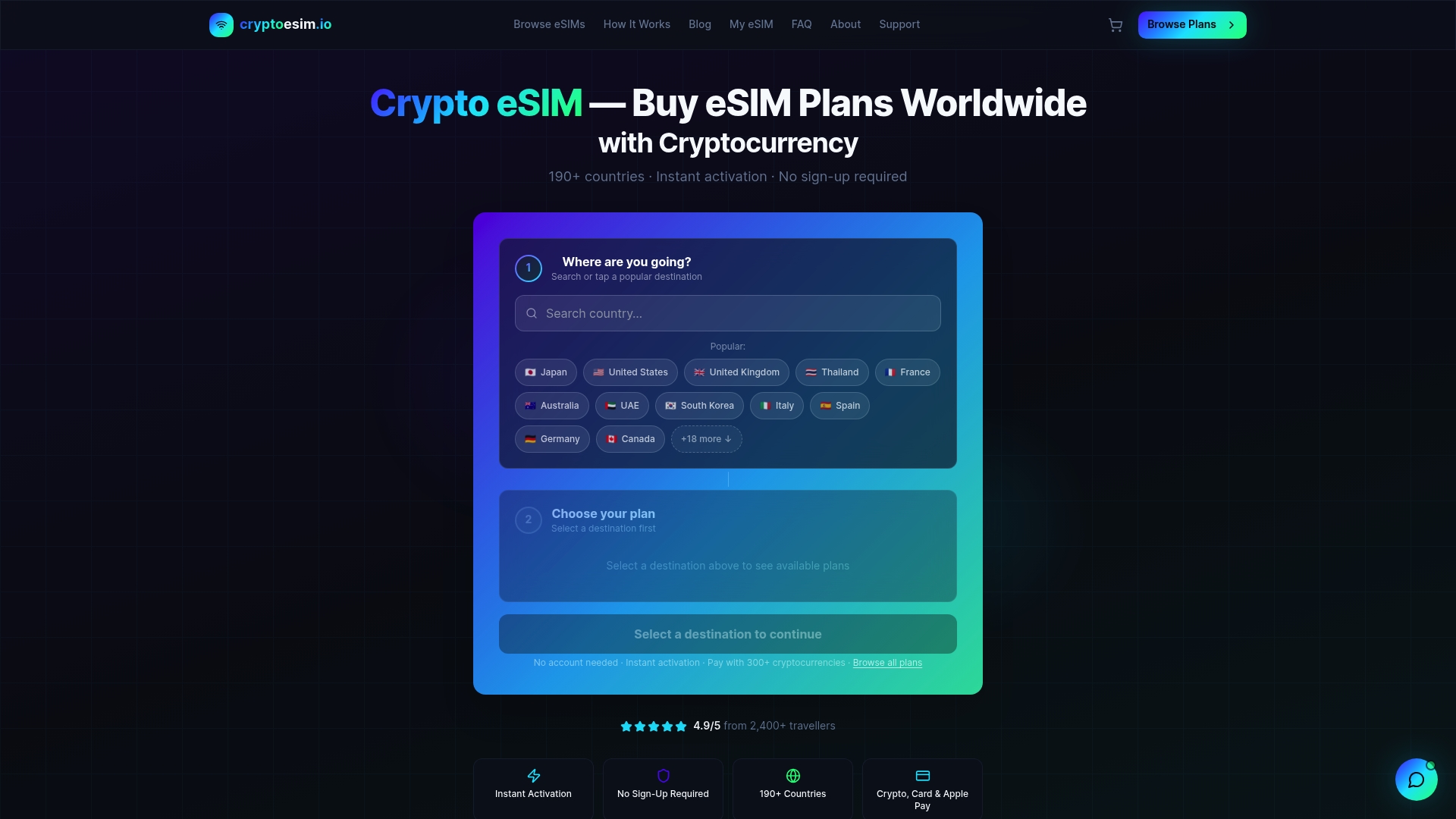
Cryptoesim provides instant eSIM activation covering over 190 countries, with no account registration required. You can pay with Bitcoin, Ethereum, over 300 other crypto tokens, credit cards, or Apple Pay. For remote workers who need a backup data connection or primary mobile internet while abroad, Cryptoesim fits directly into a well-built remote setup. Check out the global eSIM plans and stay connected wherever your work takes you.
FAQ
What internet speed do remote workers need?
Professional remote workers need at least 200 Mbps and should prioritize wired Ethernet over Wi-Fi for stability. Check your upload speed separately, as low upload bandwidth causes video call and file transfer issues.
How many software tools should a remote worker use?
A stack of 5–7 core tools covering messaging, video, project management, documentation, and security is the recommended ceiling. More tools create fragmentation and increase security risk.
What is the most secure 2FA method for remote work?
Hardware security keys like YubiKey provide stronger protection than SMS or app-based codes. They resist phishing attacks and are recommended for all high-privilege accounts.
How early should I set up my home office before starting a remote job?
Start at least 2–3 weeks before your start date to account for shipping delays, internet installation scheduling, and IT provisioning. Last-minute setups almost always hit avoidable delays.
Can I use an eSIM as a backup internet connection for remote work?
Yes. An eSIM from a provider like Cryptoesim gives you instant mobile data access in over 190 countries without a physical SIM card. It works as a reliable backup when your primary connection fails or when you are working from a location without fixed broadband.